Personal projects · Android · Reusing hardware
An old Android phone becomes a Nest camera recorder
An old phone records the video from my Nest camera, stores the clips and serves a local browser gallery. The phone's own camera isn't used.
I had paid for a full year of Google One when the Google Home Premium and Fitbit Premium benefits included in my subscription disappeared. Home Premium was the one I used for my Nest camera. A month after contacting Google, I’m still waiting to hear whether they will refund me, and how.
The proposed upgrade would have cost around another 100 a year. Having already paid for the year, paying more to recover the functionality wasn’t particularly appealing.
The camera could still stream video. I needed something to receive that stream, detect motion and save recordings. There was an old Android phone in a drawer.
Why the phone
A Raspberry Pi could have done the job, but that would have meant buying or repurposing another computer, arranging storage and setting it up. A laptop would also work, although leaving one running continuously felt excessive for this task. A rented virtual machine or an online recording service would bring recurring costs and put the recordings somewhere else.
The phone already had a processor, storage, Wi-Fi and a screen for configuration. It was small, quiet and available. All it needed was an app and a charger.
The Nest camera still captures the video. The phone receives and records its stream; its own camera isn’t used or required. It can stay somewhere convenient with power and Wi-Fi, without being pointed at the window or mounted beside the camera.
Power consumption was part of the choice. My estimate for keeping this setup running came to roughly £8 a year in electricity, based on a workload of a few watts. The actual cost depends on the phone, workload and electricity tariff.
The hardware had already been bought years ago. Reusing it meant no new recording box to purchase and very little electricity to pay for. It also gave a perfectly usable device something to do beyond sitting in a drawer.
That became Cam Motion Saver, a free Android app that turns the phone into a video receiver, motion recorder, storage device and web server for a compatible Google Nest camera. It doesn’t require Google Home Premium.
Keeping the work on one device
The app receives the camera stream and saves motion-triggered clips as MP4 files on the phone. Its small web server provides a recording gallery that I can open from another device on the same Wi-Fi.
That covers the recording setup. There’s no separate computer serving the gallery, no rented server processing the video and no cloud storage account holding the clips.
Google remains involved in supplying the Nest camera stream and account authorisation, so this still needs internet access. The recording, motion analysis, storage and browser gallery run on the phone.
The incoming video is already compressed as H.264. The recorder writes it into MP4 files without re-encoding the pictures, avoiding unnecessary processing. Android’s video decoder supplies the frames needed for motion analysis and previews.
Getting from a terminal to an app
The first experiments involved Termux, a terminal environment for Android. There were package installations and configuration prompts before there was anything useful to watch. Python, Go and a native Android application all came into the discussion, along with Pion for handling WebRTC.
I wanted to understand the architecture before committing to it. The recorder needed to keep a camera stream alive on a phone, write usable files and remain manageable after the initial setup. Installing packages in a terminal was useful for exploring the options, but the thing I wanted to use was an APK I could download, install and open.
The finished app combines a Kotlin Android service with a Go engine and Pion WebRTC. Android handles the application lifecycle and video decoding. Go handles the camera connection, recording logic and embedded web server. A small web interface supplies both the on-phone controls and the browser gallery. Running it doesn’t require Termux or a Python installation.
This also explains the localhost address visible inside the app. The interface on the phone opens its own embedded server. Other devices use the separate address on the phone’s Wi-Fi network. Both interfaces belong to the same application.
Getting the right camera authorised
One early problem had little to do with video. The account on the Android phone was different from the one associated with Google Home, which complicated figuring out which camera the app had permission to use.
The phone’s signed-in account, the OAuth client, the account authorising camera access and the camera’s resource identifier are separate pieces. Signing into the phone doesn’t, by itself, give an application access to a camera belonging to another account. The camera identifier also has to match the current authorisation rather than something copied from an earlier configuration.
Getting the camera ID to match was a useful milestone. In the current app, authorisation opens in the phone’s external browser, the app exchanges the returned code and requests the device list for that authorisation. It stores the configuration in its private application directory and uses the refresh token to request access tokens as needed.
The setup also brought up Google’s OAuth testing status and token lifetime. Publishing an OAuth consent configuration and publishing an Android app are separate actions. Neither should be confused with Google’s approval of a commercial integration. The setup guide keeps those distinctions with the actual configuration steps.
Recording before the trigger
Starting a camera connection after motion arrives can lose the beginning of the event. I wanted the recording to include what happened just before it.
The app keeps the stream connected and holds recent video in memory. When motion triggers a recording, it includes roughly five seconds from before the trigger, provided that footage and a suitable starting frame are available.
Clip duration is adjustable, and further motion extends the recording. Storage retention is configured separately: choose how many days to keep, and the app removes completed recordings as they expire.
The phone’s storage is finite, of course. Longer retention needs more space, and important clips can be downloaded from the gallery.
The early tests also exposed glitching opening frames and uneven playback. A connected stream is only the input: the saved file still needs the decoder configuration, a suitable keyframe and consistent timing. The recorder now assembles complete video frames and starts files at a usable boundary. That doesn’t reconstruct anything lost during a network outage.
Adding motion detection
The first implementation relied on motion events from Google. Then those stopped arriving in my setup.
The video stream still worked, Google Home showed motion, and the subscription checks passed. The recorder received no new messages. SmartThings also stopped receiving motion events.
That didn’t establish why delivery had stopped, but the practical problem was clear enough. The phone had video and needed another way to decide when to record.
So I added motion detection on the phone itself. It samples frames from the existing stream and compares brightness changes inside a selected rectangle. A camera preview lets me position that area and adjust sensitivity. Google events remain available as an independent trigger.
This is a small motion detector. Shadows, changing light and moving vegetation can trigger it; small movements can be missed. Choosing the area and sensitivity helps adapt it to the view.
Testing also produced long recordings alongside short clips, and occasions when one apparent event seemed to generate several files. I tried changing a motion setting, and in one test the repeated recordings stopped. That was useful feedback, but it didn’t establish a single cause for every short clip. Day/night switching was one possibility considered; short clips also appeared without an obvious lighting change.
Motion settings and video continuity needed investigating separately. A detector can keep extending a recording because it sees changes, while the recording path can split files for a completely different reason.
Making the recordings useful
Getting video into a file was only part of the work. Recordings need suitable opening frames, correct timing and handling for connection interruptions or camera format changes.
At one point manual recording worked while the live preview remained stuck. That also blocked drawing a detection area, because there was no loaded picture to draw over. A status message about waiting for a keyframe helped describe what the decoder was doing, but a successful recording alone hadn’t tested the preview or area controls. Those needed their own fixes and checks before I could use them properly.
The current implementation gives decoding its own worker and a bounded queue, so that work can stay separate from recording. The preview reuses the existing camera stream, which avoids opening another connection just to configure the detection area.
The latest version fixes one specific reason for unnecessary clip splitting. Two supplied camera clips had the same picture format but different bitrate and buffer metadata. The earlier recorder treated any change to that part of the H.264 configuration as a reason to start another MP4.
Version 0.5.14 permits those particular compatible metadata changes while preserving the split for actual format changes. The recorded verification joined the samples into one MP4, decoded it and compared every frame with the originals. That gives a concrete check for this fix, rather than assuming every short clip was a sensitivity problem.
The browser gallery provides short animated previews, so I can scan recordings before opening them. Full videos can be played and downloaded. Separate viewer and administrator links let me share the gallery while keeping recording controls private.
Version 0.5.14 is the finished version running on my old phone, and it’s working beautifully.
I’m making the app and source available for people who want to reuse a phone in the same way. The Cam Motion Saver repository is the practical starting point, with setup instructions, architecture and build details and the 0.5.14 build report.
There is some Google developer configuration to complete, and compatibility depends on the camera and Android hardware. The README documents Google’s separate Device Access registration fee and programme restrictions. The local viewer uses HTTP on a trusted network; its private links control access without encrypting the traffic. These are useful boundaries to understand before setting it up.
What the camera is watching
The project started with a subscription change and ended with an old phone doing a useful job for roughly £8 a year in electricity.
The camera is watching a family of black redstarts outside my window. I feed them and look after them: Gino, the black male, Gina, the brown female, and their youngster.
The juvenile’s nickname is Chela di Granchio, Italian for “crab claw”, because the little one looks like a breaded crab claw. Gino and Gina got fairly normal names. Their child wasn’t so lucky.
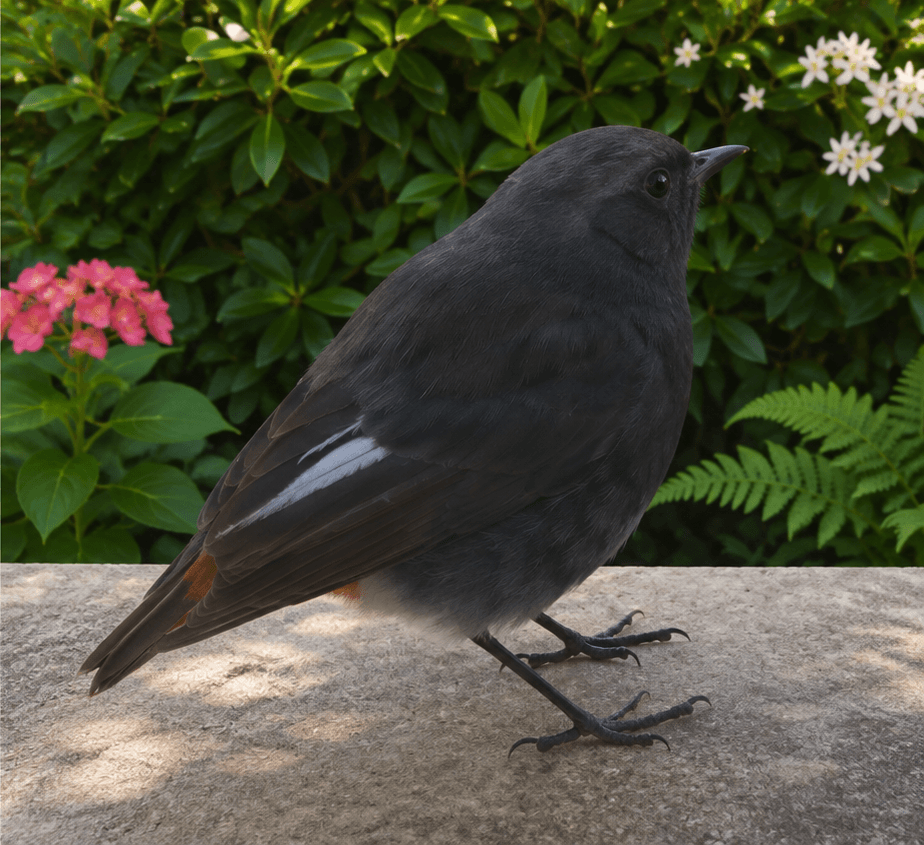
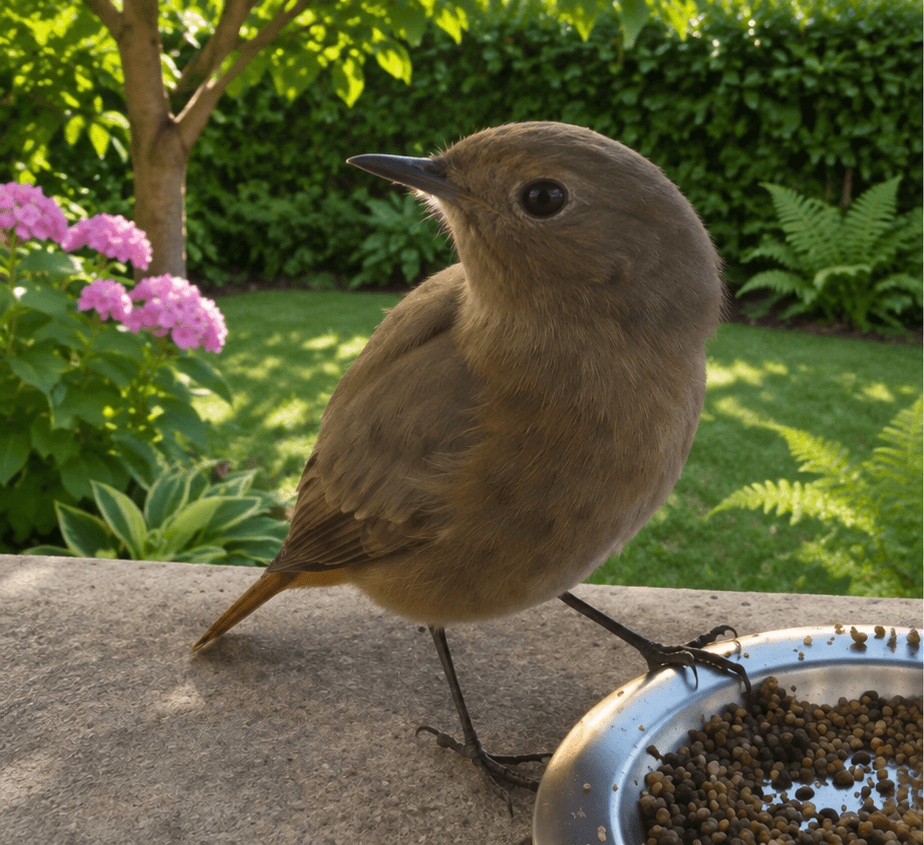
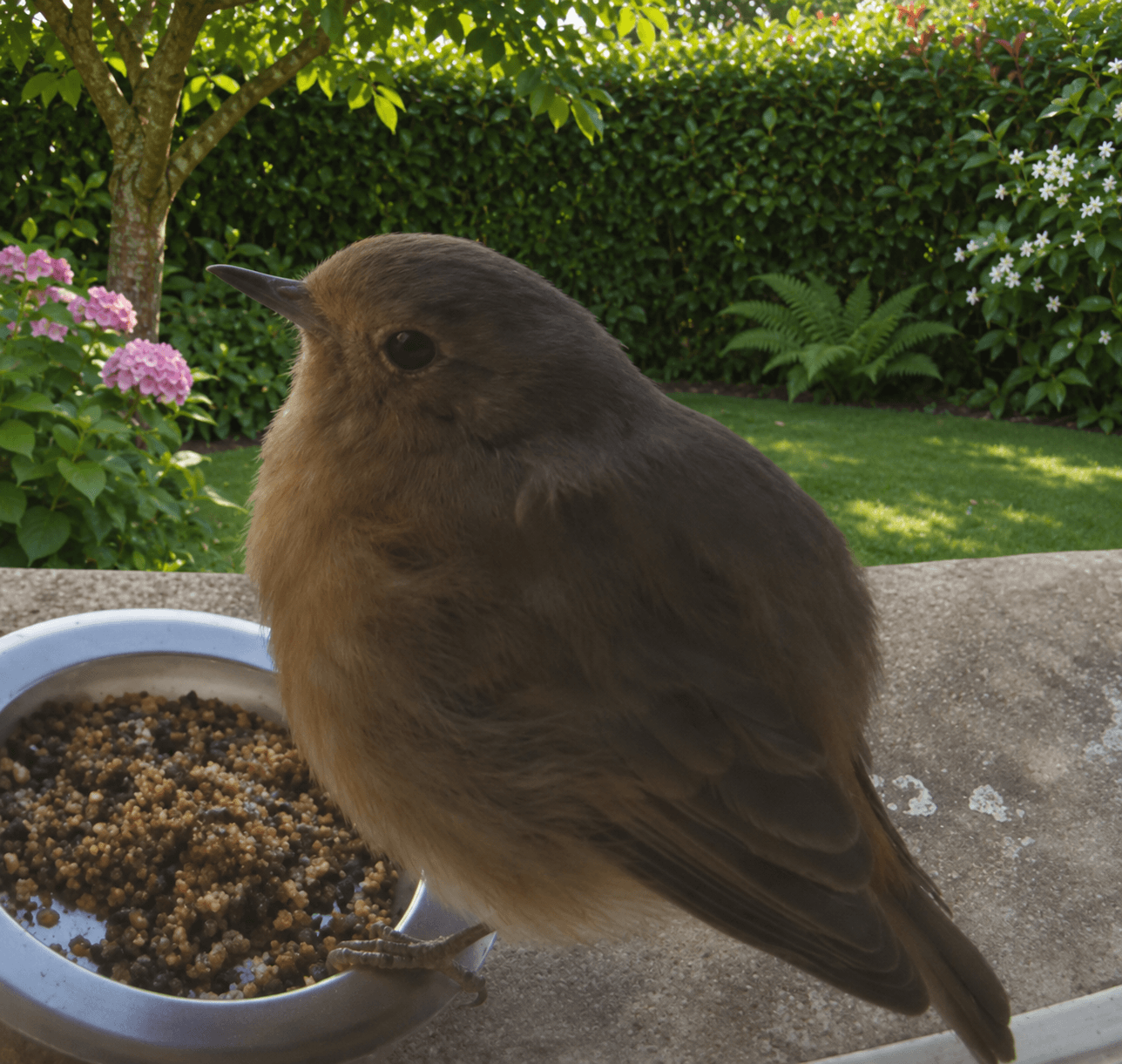
That’s the family I’m looking after. I wanted to watch their visits and keep a few clips, including the seconds before they land. The phone takes care of the recordings; I take care of the food.